
1996Release year

01 / MOTOROLA
StarTAC
MemoI loved the click when I snapped it shut.
Your gadgets. Your history.
A gadget journal for the phones, cameras and computers you’ve used.
Keep your timeline on your phone, tablet or the web. No installation needed for the web.
Start for free on iPhone, iPad, Android and the web
StarTAC Pebble
 Moto G (1st generation)
 Nintendo DS Lite
 RAZR V3
 X100VI
01 / RECOGNITION
You may forget the model name. You remember the feeling.
Pick up to three familiar gadgets.
A preview only. Your choices are not saved to the app and reset on refresh.
See the timeline02 / THROUGH THE YEARS
The gadgets you choose line up by release year. A tiny image might bring back a whole scene.
Example gadgets, ordered by release year.
Years are catalog release years. Record your own usage dates and stories in the app or on the web.
Choose your own gadgets ↑MemoI loved the click when I snapped it shut.
MemoReading a message on my wrist felt like a tiny miracle.
MemoI saved up for it at my part-time job. It felt like mine.
Add the time you spent with each gadget, its status and photos.
A personal timeline built around your own memories.
Capture a memory on your phone, then explore it on a larger screen. Use the iPhone or Android app, the iPad app, or a web browser on your computer or tablet.

The scrolling preview could not load. Explore the user guide to see how records work.
03 / THE STORY BEHIND IT
Every gadget comes with a memory.
Keep it close, or choose a story to share in Lounge.
 2005
2005Pocket money, saved for months. Twenty songs on repeat on the way to school. The playlist is gone, but I still remember every word.
04 / GIZMORY STUDIO
Three ways to create in the app and on the web. Preview them with real app screens.
Open Timeline Card in Studio. Choose a device category and a format — story, square feed, portrait feed or landscape — then share the image.
These are real app screenshots with sample records, independent of your choices above. Create and share in the app or on the web.
Follow the visual guide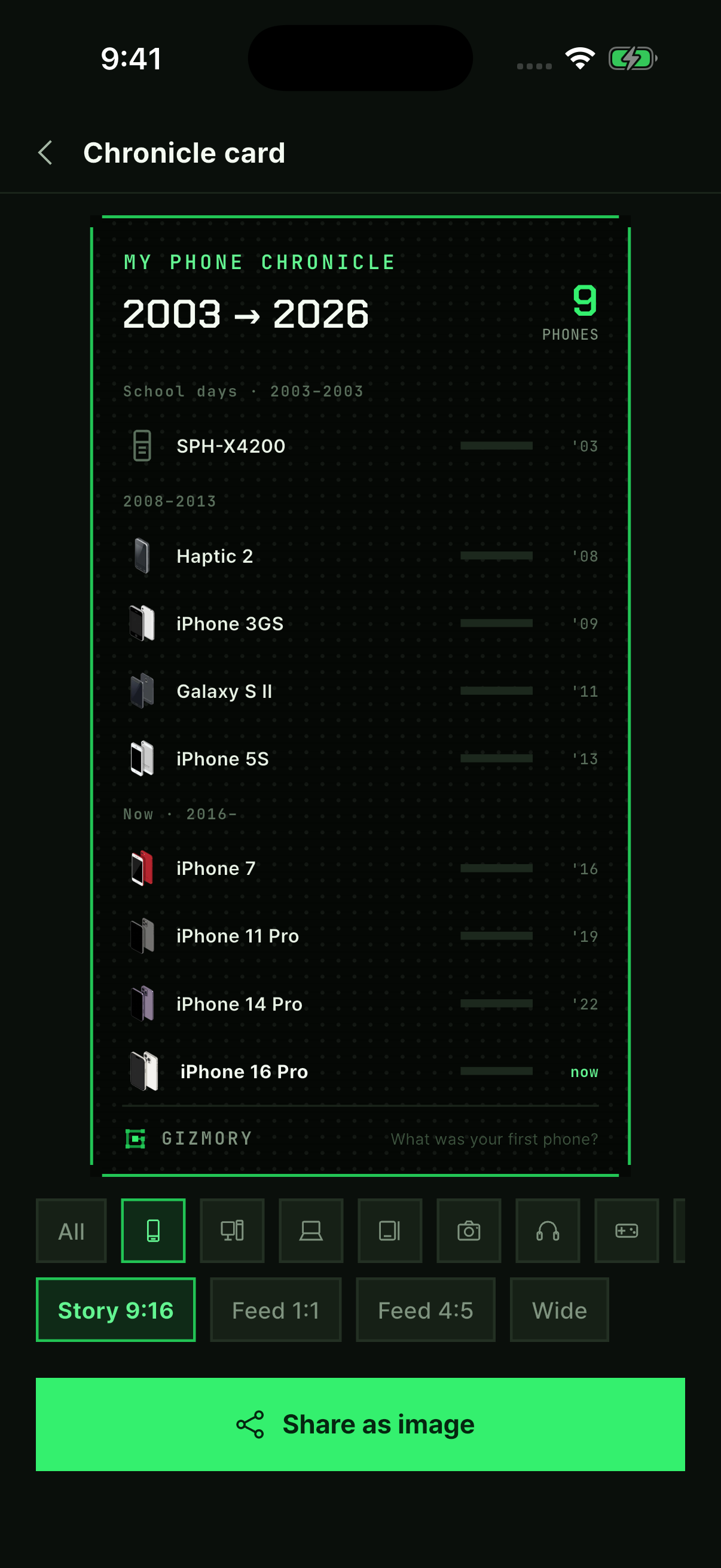 View full screen ↗
05 / CATALOG & LOUNGE
 DynaTAC 8000X1984StarTAC1996
 iPhone 3G2008
 Curve 85202009
 iPhone 42010
 iPhone X2017
 Galaxy Fold2019
 Galaxy Z Flip2020
 Galaxy Z Flip 32021
 Razr Ultra (2025)2025
 Apple II1977
 IBM PC 51501981
 Apple IIe1983
 Apple IIGS1986
 iMac G31998
 iMac G3 (Slot-Loading)1999
 Power Mac G5 (2003)2003
 iMac 24 (M1, 2021)2021
 Mac mini (M2, 2023)2023
 Mac mini (M4, 2024)2024
 PowerBook 1001991
 ThinkPad 700C1992
 ThinkPad T202000
 MacBook Pro 15-inch (2006)2006
 NC102008
 MacBook Air (Late 2010, 11"/13")2010
 Lenovo ThinkPad X1 Carbon2012
 MacBook Air (Retina, 2018)2018
 MacBook Pro 13-inch (M1, 2020)2020
 MacBook Air (M4, 2025)2025
 Pilot 10001996
 PalmPilot Professional1997
 iPad (1st gen)2010
 iPad mini2012
 Nexus 7 (2012)2012
 Kindle Fire HDX 72013
 iPad Pro2018
 Galaxy Tab S7+2020
 iPad Air (4th generation)2020
 Galaxy Tab S9+2023
 Nikon F1959
 AE-1 Program1981
 35Ti1993
 EOS 300D2003
 EOS 5D2005
 α72013
 A60002014
 α7 IV2021
 ZV-E102021X100VI2024
 Walkman TPS-L21979
 Discman D-501984iPod (1st gen)2001
 iPod mini2004
 iPod nano2005
 Stanmore2013
 SoundLink Mini II2015
 QuietComfort 352016
 AirPods Pro (1st gen)2019
 WH-1000XM62025
 Atari 2600 / Video Computer System1977
 Game & Watch1980
 Super Nintendo Entertainment System (SNES, North America)1991
 Game Boy Color1998
 Dreamcast1998
 Nintendo DS2004
 Xbox 3602005Nintendo DS Lite2006
 PlayStation 42013
 Steam Deck2022
 Forerunner 3052006Pebble2013
 Forerunner 2352015
 Apple Watch Series 32017
 Apple Watch Series 42018
 Galaxy Watch Active22019
 Apple Watch Series 62020
 Apple Watch Ultra2022
 Apple Watch Series 92023
 Oura Ring 42024
 Casio fx Series1991
 BlackBerry 8501999
 Kindle Keyboard (3rd generation)2010
 Roku 32013
 Fire TV (1st generation, box)2014
 Fire TV Stick 4K (1st generation)2018
 Chromecast with Google TV (4K)2020
 Kindle Paperwhite (5th gen, 11th gen)2021
 Meta Quest 32023
 Kindle Paperwhite (12th generation)2024
10 popular picks per category, from early classics to recent releases. Explore the full catalog in the app or on the web.
Share gadget memories and everyday experiences in Lounge. Join the conversation with comments. An account and community profile are required to participate.
Get started with Lounge06 / GIZMORY MAGAZINE
Gizmory editors dig through the records to revisit the history behind these icons.
Read the full articles here, with no app installation needed.
 No.01
No.01Macintosh 128K
The Hello demo ran on a 512K prototype.
Read article: Hello, Macintosh — The Computer That Said Hi No.02
No.02Famicom (NES)
In September 1986, The New York Times put video games back on its front page.
Read article: The Red Box and the Gray BoxNo.03Walkman TPS-L2
Sony’s first personal stereo reached America under a different name, at $199.95, as 1979 turned into 1980.
Read article: The Walkman, When Music Left the House No.09
No.09Leica M3
What arrived in Cologne in April 1954 was Leica’s first M — one mount, one 0.91× window.
Read article: Leica M3 — See and Focus in One Window No.14
No.14Prada KE850
Months before the iPhone reached a store shelf, a phone you worked with nothing but a fingertip went on sale in Europe.
Read article: The Prada Phone — A Face Made of Glass07 / MAKE YOURSELF AT HOME
Begin your personal gadget records and timeline without an account.
Personal records are separate from Lounge posts. Share the stories you choose.
See the app and privacy policy for account, backup and data-storage details.
08 / FAQ
A gadget journal app keeps a personal record of the tech you’ve used. Gizmory brings your phones, cameras, computers and consoles together with dates, photos and memories. It is a journal of your gadgets and your life with them.
A device timeline app organizes your gadgets into a personal history. In Gizmory, record when you used a flip phone, an iPod or your first iPhone, then add photos and memories. Your timeline follows your own usage dates, not just product release years.
You can start your personal device records and timeline without signing in. Sign in with the same account to use your records across the app and web. Posting or commenting in Lounge also requires a community profile.
Yes. Use the App Store for iPhone and iPad, Google Play for Android, or open Gizmory in a browser. Start for free; check your local store page for current compatibility and supported app languages.
Yes. Choose “Start on the web” in a browser on your computer, tablet or phone. Home brings together news, magazine articles and memorable gadgets, with access to the catalog, your timeline and Lounge.
Yes. Get the iPad app from the App Store or open the web version in Safari or another browser. Explore the catalog and organize your device timeline and stories on a larger screen.
Yes. Open Magazine from the site menu or choose “Read article” on a featured card. It takes you straight to the public article, which you can read in your browser.
Yes. Sign in with the same account to access your cloud-synced device records and the same Lounge. Automatic sync is on by default when signed in and can be changed in Settings. Personal photos are not synced automatically.
No. Gizmory is free to start, and Pro is a one-time lifetime purchase. Check the app for current local pricing and the features included in Free and Pro.
Yes. Record your devices, then open Timeline Card in Studio to choose a category and image format. You can also make a sticker poster or save your gear of the day with GearFit.
Request a device addition in the app. While it is being reviewed, you can enter the device manually to begin your personal record.
Personal records are separate from stories you share in Lounge. Review your text and photos before posting: the content you choose to share will be public. Photo analysis for finding old devices takes place on your device.
Start with one gadget you remember.
Use the app on your phone or tablet, or open the web on your computer. Start on the screen that suits you.
START HERE / A VISUAL GUIDE
Start with one gadget you remember.
Follow along with real screens from the app.
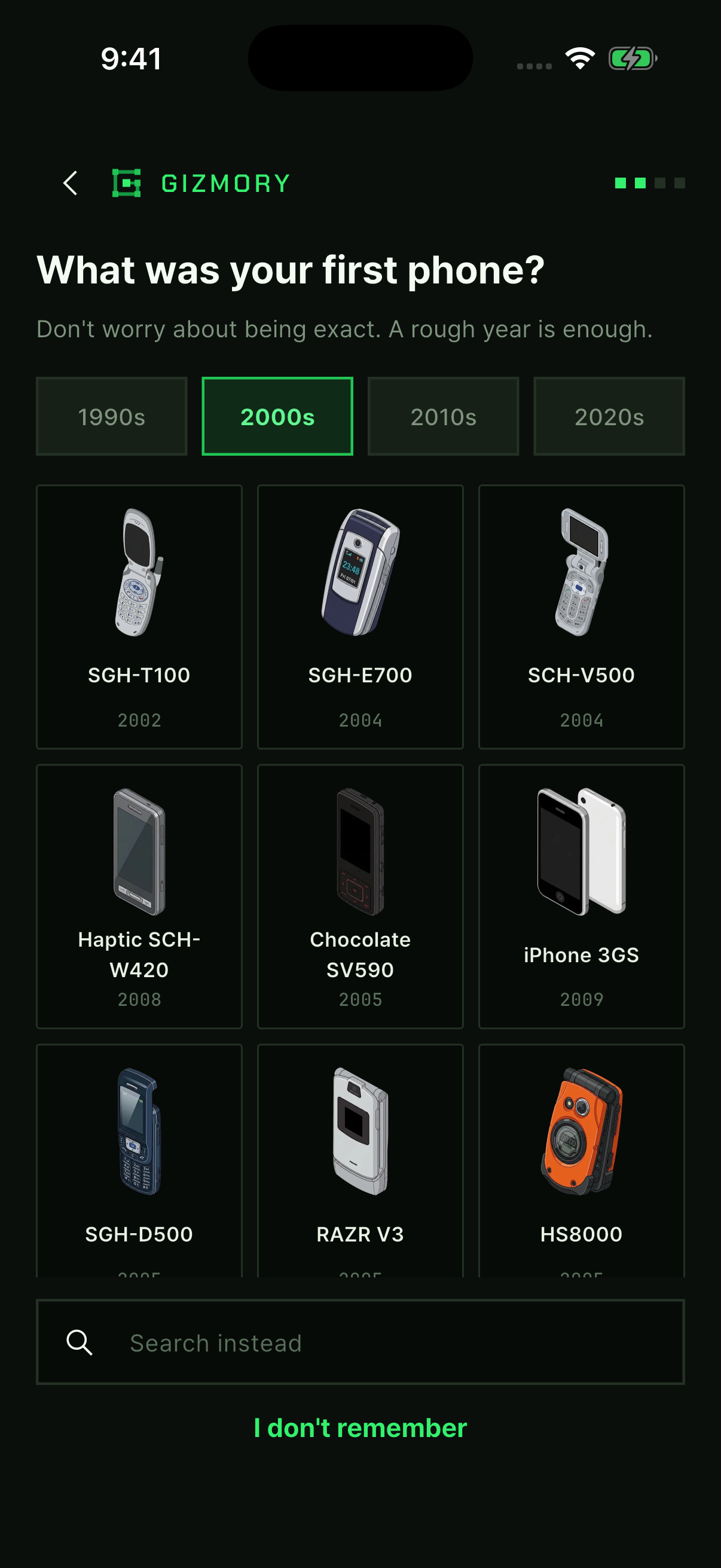
Start with your first phone. Browse by decade or search for the model you remember.
 View full screen ↗Read this step ↗
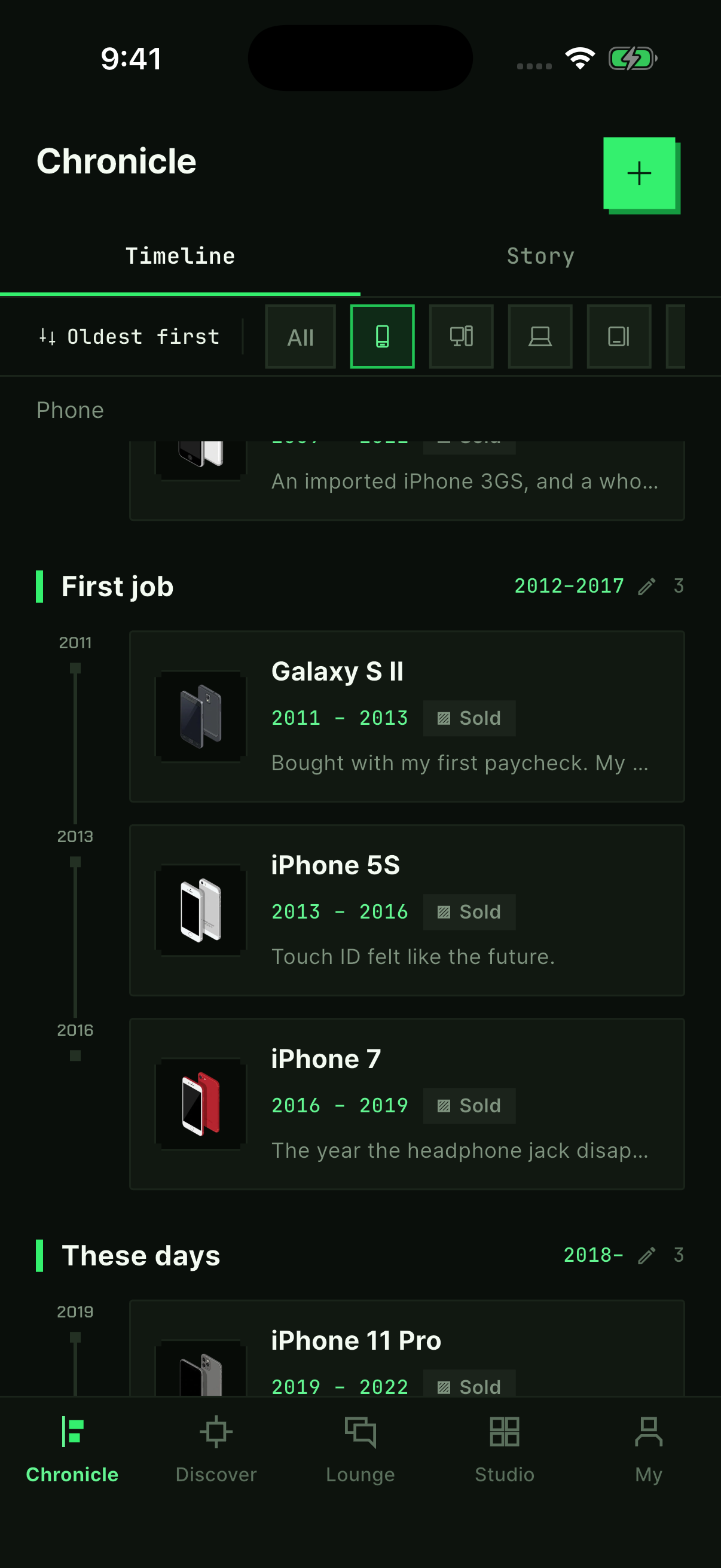
Your records line up through time. Use the + button to add the next chapter.
 View full screen ↗Read this step ↗
Choose a timeline card, sticker poster or today’s GearFit to share your gadget story.
View full screen ↗Read this step ↗Choose a device in Gizmory, add when you used it and its status, and save it to your personal timeline. Your old phones belong there too.
This is the screen you see when you get started. Browse the decades from the 1990s to the 2020s, or use the search field below. If nothing comes to mind, tap “I don’t remember” to move on.
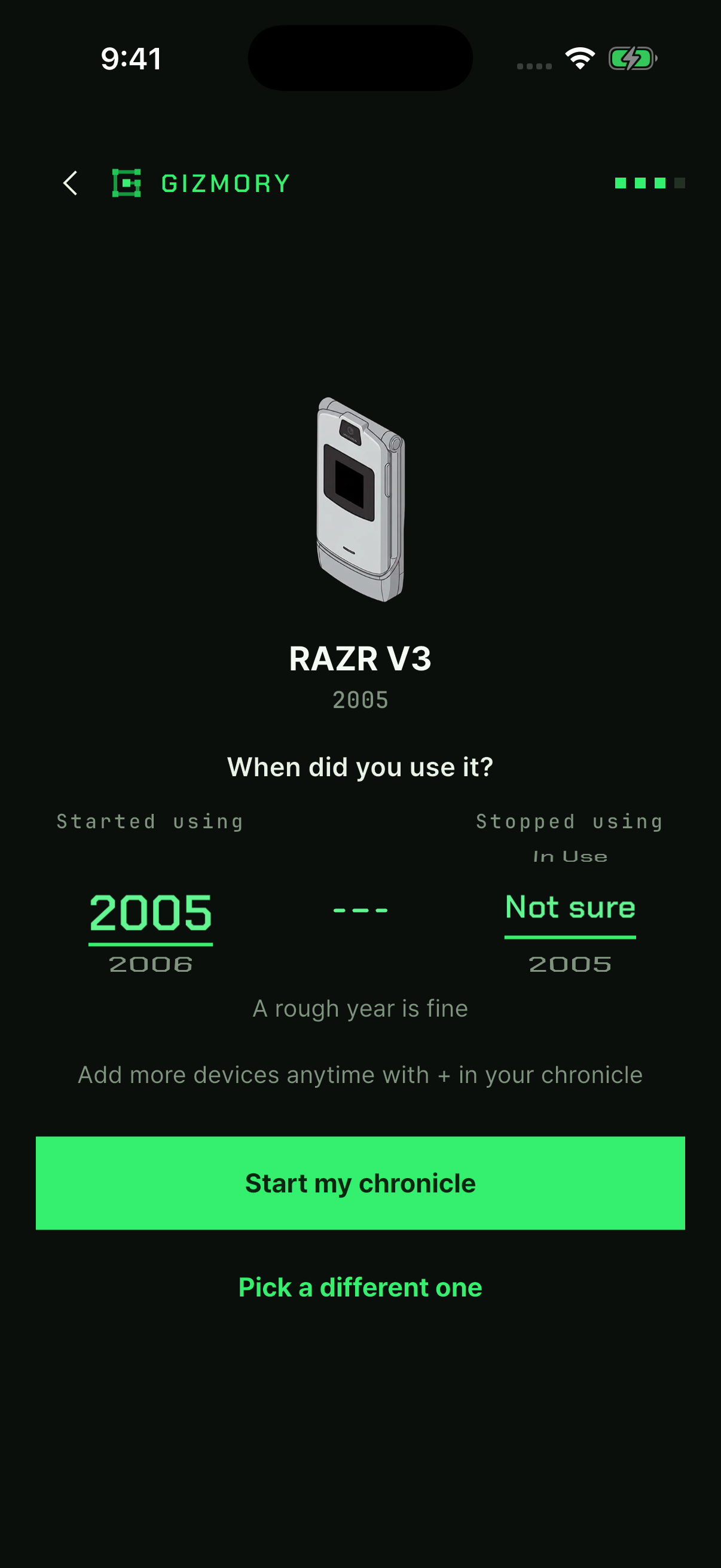
View full screen ↗Choose when you started and stopped using the phone, then tap “Start my chronicle”. A rough date is fine. Use “Not sure” when you cannot remember.
 View full screen ↗
Open the Chronicle tab at the bottom of the app to see your recorded devices. Tap + at the top right to add another. Open a record to update its status or add a story.
View full screen ↗You can request a catalog addition. While you wait, you can also enter the details yourself to start a personal record. Add what you remember rather than choosing a similar model as an exact match.
Keeping a personal record and posting in the Lounge are separate actions. You can start your Chronicle without signing in, then choose which stories you want to share.
Open Studio to turn your device records into cards you can share. Check the current in-app information for the features available to you.
Choose another guide from the menu at the top.
Once you have recorded your devices, open Studio at the bottom of the app. Bring them together in a timeline card, arrange a sticker poster, or show what you are carrying with Gear Fit.
Open “Make a Chronicle Card” in Studio. Choose a device category, such as phones or computers, and a format: Story 9:16, Feed 1:1, Feed 4:5, or landscape. Tap “Share as image” to open the share sheet.
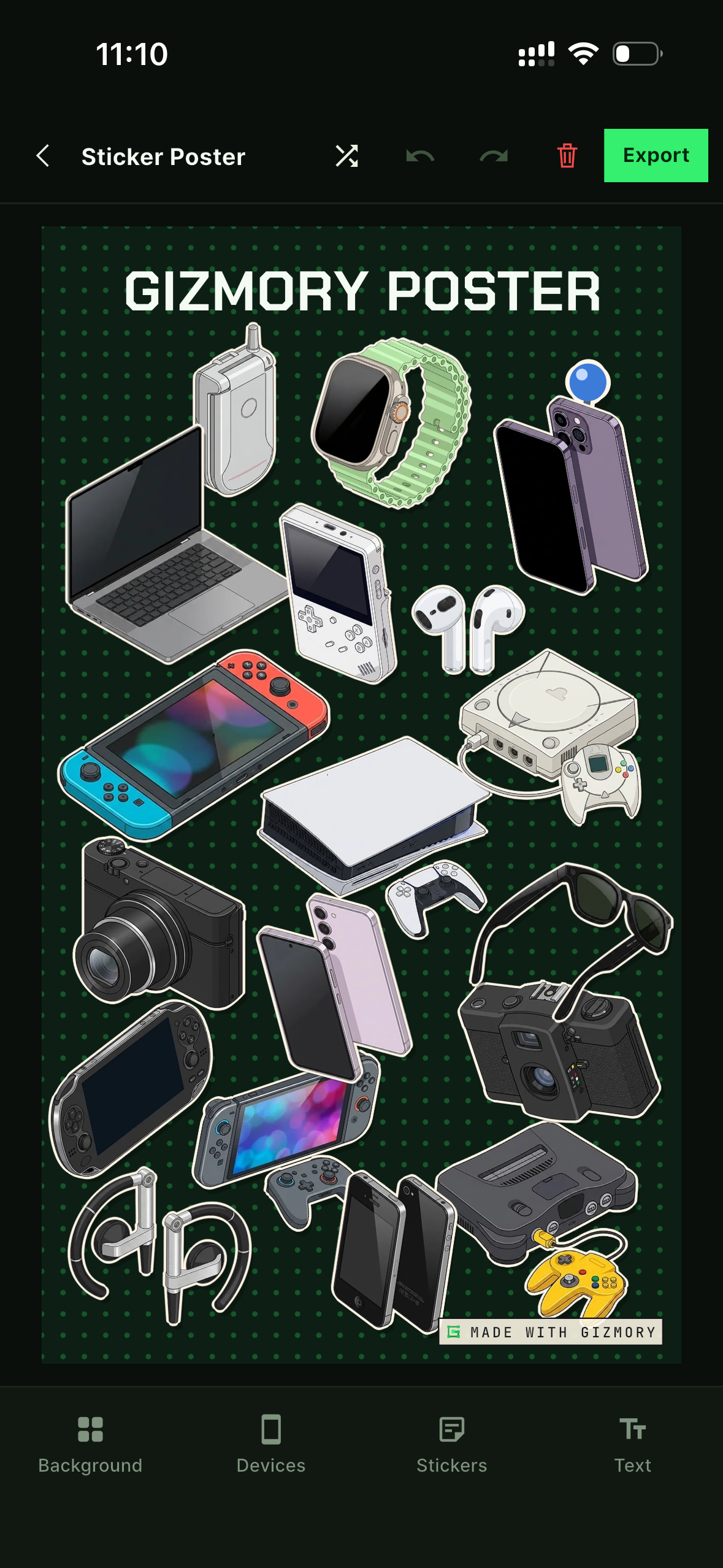
View full screen ↗Open Sticker Poster and tap “Create new poster”. Choose a background, add your devices and stickers, then move and resize them. The example below shows a personal device collection arranged in the real editor. Use Background, Devices, Stickers, and Text at the bottom, then tap “Export” at the top right to share.
 View full screen ↗
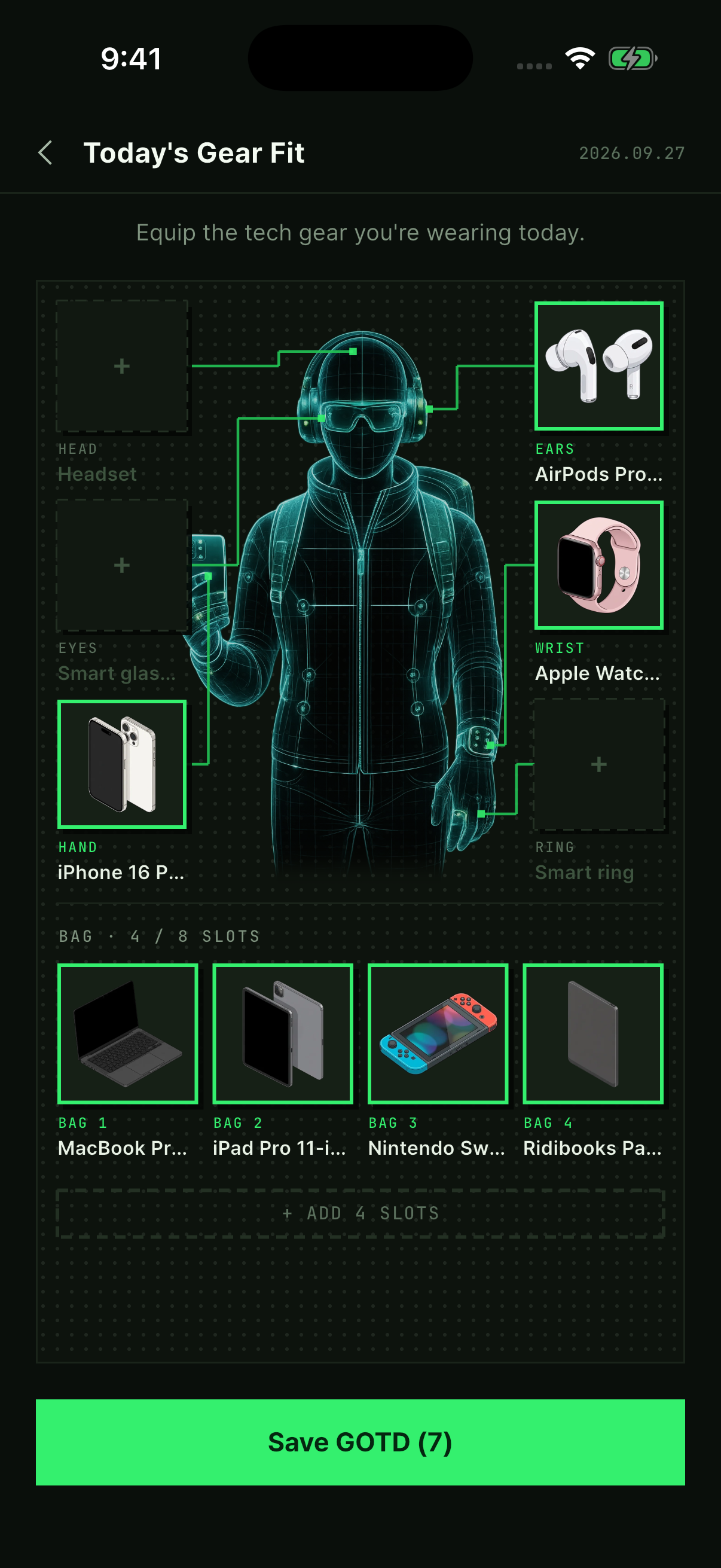
Open “Today’s Gear Fit” and tap a + slot beside the avatar. Choose gear for each slot, such as a phone for your hand or earbuds for your ears. Add devices to the bag, then tap “Save GOTD” to keep today’s setup. The screen below shows seven items equipped across the ears, wrist, hand, and bag.
 View full screen ↗
Studio uses the devices you have recorded. If you have not added any yet, start with the guide to recording your first device.
Review the devices, dates, stories, and photos on your card before sharing it. The records shown here are examples for this guide. Screens and available options may vary by app version and by the free or Pro features you use.
Choose another guide from the menu at the top.
If a photo still contains the make and model of the device that took it, Gizmory can read that information on your device to suggest an old phone or camera you may have used.
This feature does not identify a phone by how it looks in a picture. It reads clues in the photo file’s EXIF information, such as the manufacturer, model, and date taken. It helps you find the device that took the photo.
Photos without shooting information, screenshots, and images whose metadata was removed by messaging or editing apps may not identify a model. Even when metadata is present, the catalog may not have a matching device, or the model name may be ambiguous. Treat results as suggestions to review.
This analysis runs on your device. It does not send the original photos or their original shooting information to a server for analysis. Choosing to post a photo in the Lounge is a separate action. Read the Privacy Policy for details about data handling.
Choose another guide from the menu at the top.
You can start your personal device records and Chronicle without an account. Participating in the Lounge and using cloud features tied to an account require you to sign in.
You can record devices and build a Chronicle without creating an account when you first open the app. Starting without an account does not mean every feature is free or unlimited. Check the app for the current free and Pro feature availability.
To post or comment in the Lounge, sign in and create a community profile. Your personal records and photos are not all posted automatically. Review the content and photos you choose to share before publishing.
Local records and account-based cloud backup are separate features. Cloud features require sign-in and may have their own access conditions. Before changing devices or deleting the app, check your actual backup status and the restore instructions in the app. Also check which original photos are included.
See the account deletion instructions (Korean) for the steps and the data affected. Deleting an account and removing personal records from your device are different actions, so read the deletion screen carefully before proceeding. For help in English, visit Support.
Choose another guide from the menu at the top.