GIZMORY
GIZMORY GUIDE
Make your own device cards in Studio
Once you have recorded your devices, open Studio at the bottom of the app. Bring them together in a timeline card, arrange a sticker poster, or show what you are carrying with Gear Fit.
01. Share your history as a timeline card
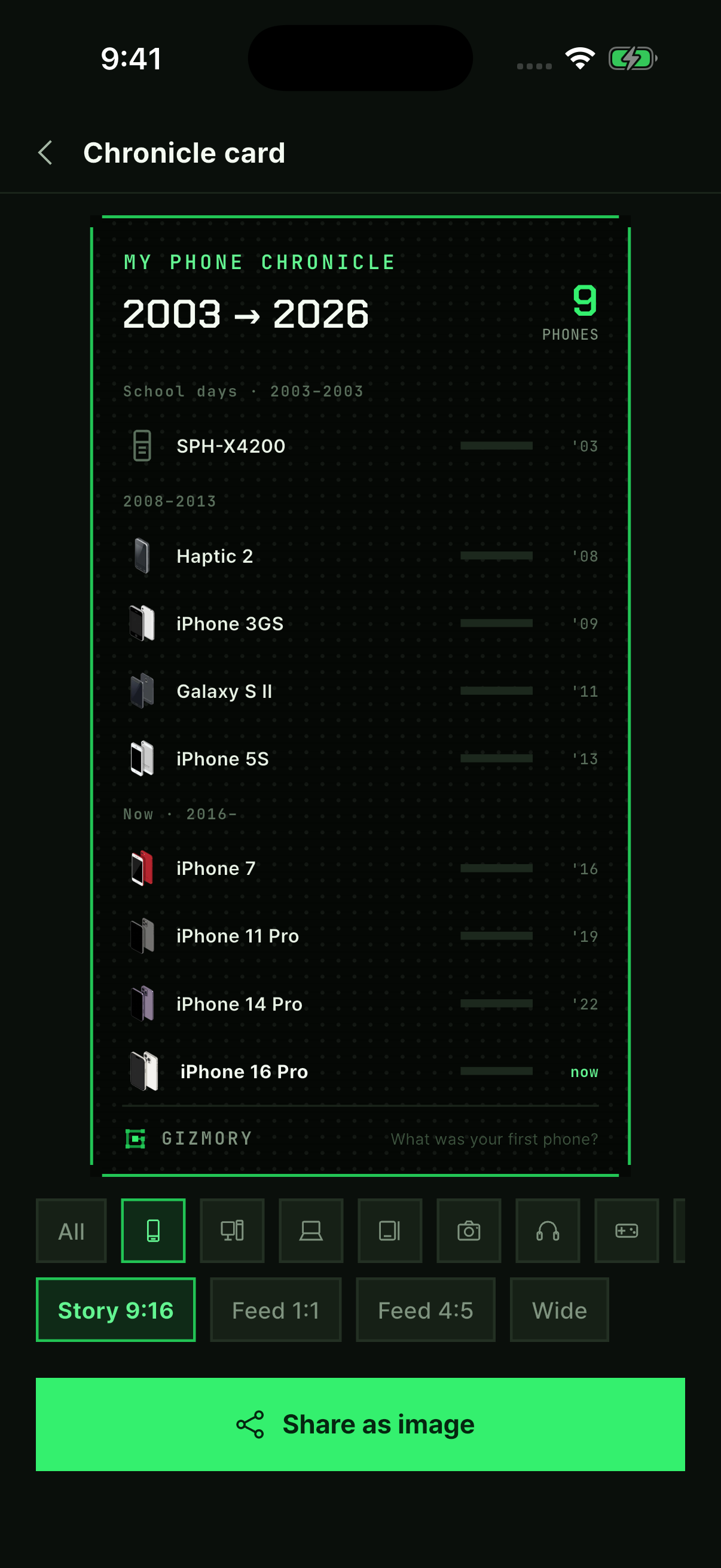
Open “Make a Chronicle Card” in Studio. Choose a device category, such as phones or computers, and a format: Story 9:16, Feed 1:1, Feed 4:5, or landscape. Tap “Share as image” to open the share sheet.
02. Arrange devices and stickers
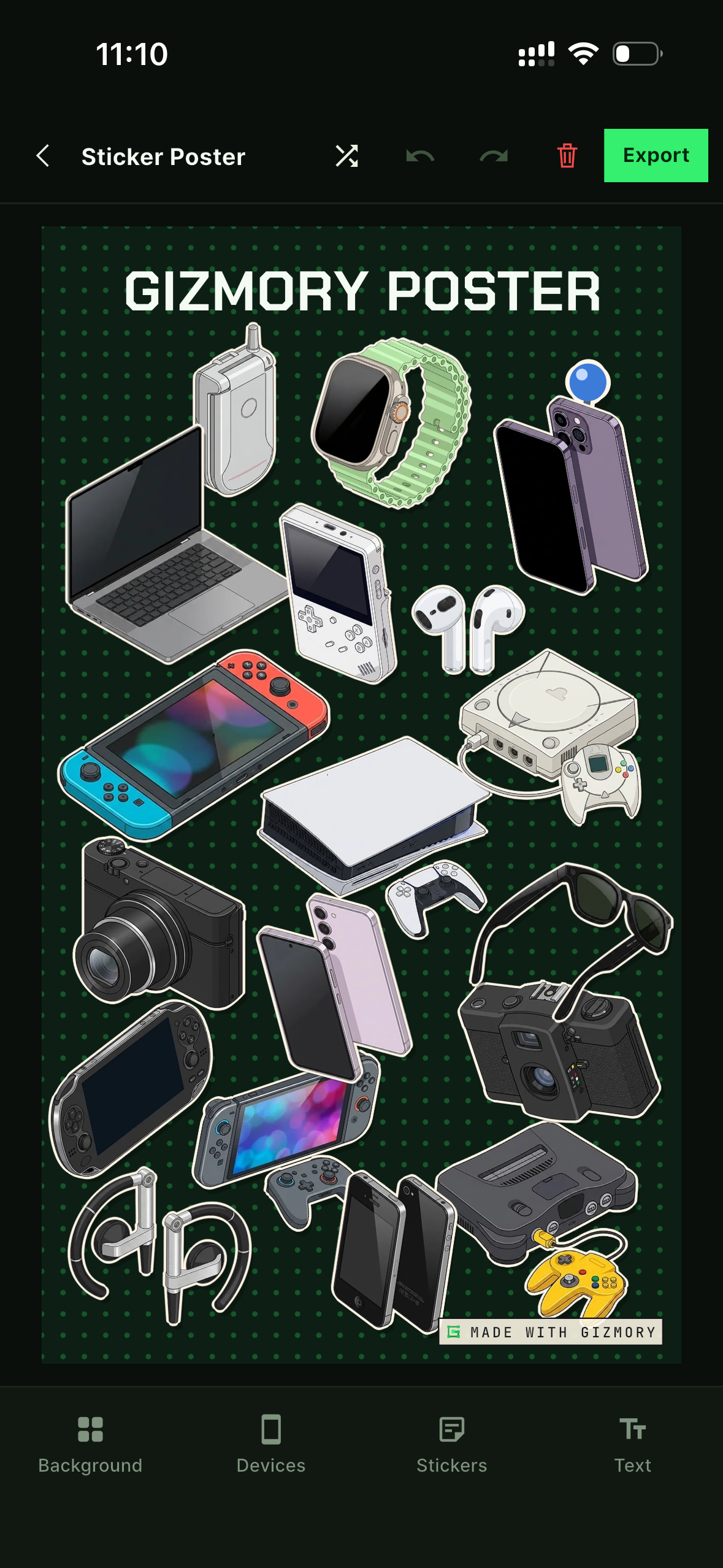
Open Sticker Poster and tap “Create new poster”. Choose a background, add your devices and stickers, then move and resize them. The example below shows a personal device collection arranged in the real editor. Use Background, Devices, Stickers, and Text at the bottom, then tap “Export” at the top right to share.
03. Equip the gear you brought today
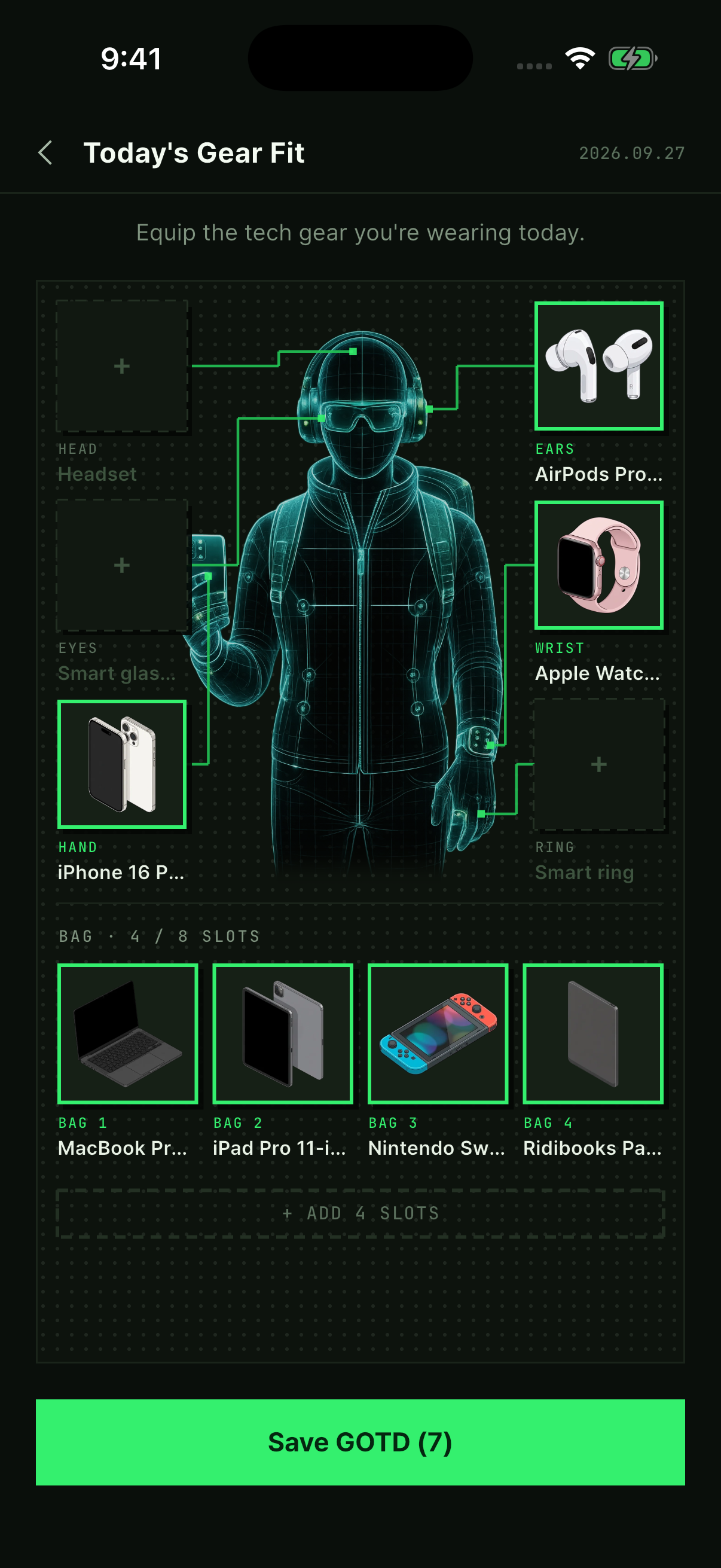
Open “Today’s Gear Fit” and tap a + slot beside the avatar. Choose gear for each slot, such as a phone for your hand or earbuds for your ears. Add devices to the bag, then tap “Save GOTD” to keep today’s setup. The screen below shows seven items equipped across the ears, wrist, hand, and bag.
Record your devices first
Studio uses the devices you have recorded. If you have not added any yet, start with the guide to recording your first device.
Check before you share
Review the devices, dates, stories, and photos on your card before sharing it. The records shown here are examples for this guide. Screens and available options may vary by app version and by the free or Pro features you use.
Official information
This guide explains Gizmory’s features. Visit the Gizmory home page for an overview, the Privacy Policy for details about data handling, or Support for help.
More guides
Record the phones you used to own
Find an old phone in the Gizmory catalog and add when you used it and its status. Build your timeline one device at a time, even if you do not remember the exact dates.
Follow along with real app screens ↗Find old devices using photo information
Use the make and model stored in a photo’s EXIF information to find possible matches for old devices. Learn how on-device analysis works and when a match may not be available.
What can I do without a Gizmory account?
Learn which personal device records you can keep without an account and which Lounge and cloud features need a sign-in. Check how your records and shared photos are handled.